A Grant Most Camps Don’t Know They Qualify For
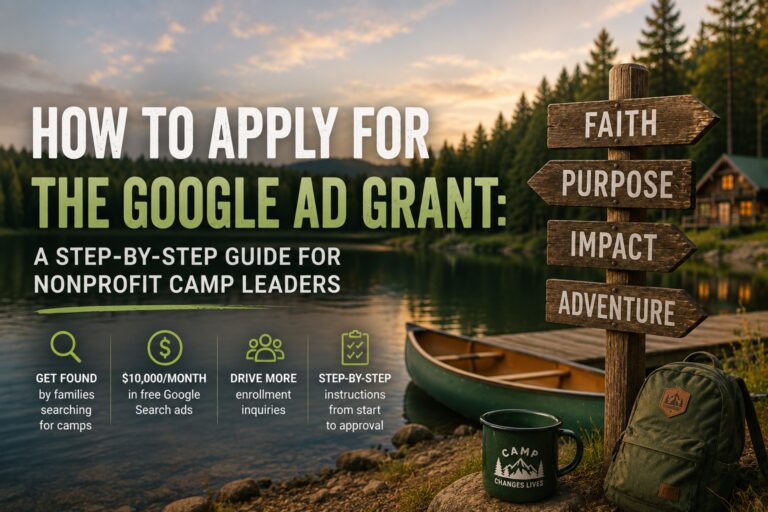
If you lead a nonprofit camp, you already know the pressure of doing more with less. Staff costs, facility upkeep, programming, scholarships — the financial demands are real and constant. That’s why it’s worth pausing on this: Google offers eligible nonprofit organizations up to $10,000 per month in free Google Search advertising. And most camps that qualify have never applied.
The program is called the Google Ad Grant, and it’s one of the most practical, high-impact digital tools available to nonprofit camps today. It allows your organization to appear at the top of Google search results when families are actively searching for summer camps, outdoor youth programs, retreat experiences, and more — at zero cost to you.
But before you can access the Ad Grant, you need to be accepted into the Google for Nonprofits program first. This guide walks you through both steps — from checking eligibility to getting your first campaign live — in plain language, with direct links to the official Google Help Center resources at every stage.
What Is the Google Ad Grant?
The Google Ad Grant provides eligible nonprofits with $10,000 in free Google Ads credits every month. You use those credits to run text ads on Google Search. When a parent in your area searches “nonprofit summer camp near me” or “Christian overnight camp for teens,” your camp can show up at the very top of the results — at no cost to your organization.
This guide is structured around the Retreat & Camp Growth Roadmap — specifically the “Activate Search Campaigns” focus area within the “Capture High-Intent Leads” step. The Google Ad Grant is one of the best tools available for doing exactly that: reaching families who are already searching for what you offer, and bringing them to your website at no advertising cost.
Is This Guide Right for Your Camp?
Before diving in, here are a few reflection questions to help you assess where you are:
- Do families who are searching for camps in your area know you exist?
- Are you spending money on advertising to reach families who are already searching for camps online?
- Does your camp have 501(c)(3) status and a functioning website?
- Have you heard of the Google Ad Grant but never applied — or weren’t sure if you qualify?
- Are you looking for a cost-effective way to drive more enrollment inquiries without increasing your budget?
If you answered yes to any of these, this guide is for you. Most nonprofit camps with 501(c)(3) status and a working website qualify for the program and can be approved within two to three weeks.
Part 1: What Is the Google for Nonprofits Program?
Google for Nonprofits is a free program that provides qualifying charitable organizations access to a bundle of Google tools at no cost. Think of it as a gateway — once you’re accepted, you can activate individual products, the most valuable of which is the Ad Grant.
Here’s a quick overview of what the program includes:
This guide focuses primarily on the Google Ad Grant, since it delivers the most immediate value for camp enrollment and visibility.
🔗 Google for Nonprofits Homepage 🔗 Official Eligibility Guide (Google Help)
Part 2: Do You Qualify?
The eligibility requirements are straightforward for most nonprofit camps. Before applying, confirm your organization meets the following criteria.
What You Must Have
Who Is NOT Eligible
Google excludes certain types of organizations from the program. Review this list before applying:
- Governmental entities and government-operated organizations
- Hospitals and healthcare organizations (charitable foundations or arms of hospital organizations are eligible)
- Schools, academic institutions, and universities (Google for Education offers a separate program for these)
- Fiscally sponsored organizations that do not hold their own 501(c)(3) status
- Organizations that primarily serve a single religion or political cause through their grant-funded ads
Good news for most camps: If your camp is an independent 501(c)(3) nonprofit — not a school program or a government-operated facility — you almost certainly qualify. Faith-based camps can qualify as long as the grant-funded ads support your broader charitable mission rather than exclusively promoting a single denomination.
🔗 Check Full Eligibility Requirements 🔗 Ad Grants Website Policy
Part 3: How to Apply — Step by Step
The application process has two main stages: verifying your nonprofit status through Google’s partner Goodstack, then completing your Google for Nonprofits account setup. Here is exactly what to expect.
Go to Google for Nonprofits and Click “Get Started”
Visit google.com/nonprofits and click the Get Started button in the top right corner. You will be prompted to sign in with a Google account.
Use the Google account you want permanently associated with your camp. Ideally this is an account tied to your camp’s domain (e.g., [email protected]). This account will become your admin account and will be linked to your Ad Grant. You can add other team members later, but you cannot change this initial account.
Complete the Goodstack Nonprofit Verification
Google partners with Goodstack (a nonprofit verification organization, formerly known as TechSoup) to independently confirm that your organization is a legitimate, active 501(c)(3). This step is required before your Google for Nonprofits account can be approved.
During the application flow, you’ll be walked through submitting your organization to Goodstack for verification. They will confirm:
- Your 501(c)(3) registration with the IRS
- That your organization is currently active and in good standing
- That you (the applicant) are authorized to represent the organization
Have the following information ready when you apply:
- Your organization’s legal name (exactly as it appears on your IRS determination letter)
- Your EIN (Employer Identification Number)
- Your camp’s website URL
- Your name, title, and phone number
Watch your spam folder. Goodstack will contact you by email to confirm or request additional documentation. Look for messages from [email protected] — these frequently end up in spam or junk folders. Most verifications are completed within 3–5 business days. If you don’t hear back within that window, contact Goodstack directly (not Google) to follow up.
Complete Your Google for Nonprofits Account Request
Once Goodstack verifies your nonprofit, return to your Google for Nonprofits application to complete the final setup. You will be asked to:
- Search for your organization from the Goodstack-verified list (or select “My organization is not listed” if needed)
- Confirm your camp’s phone number, website, and contact details
- Review and agree to the Google for Nonprofits Terms of Service
- Submit your account request
Google will review your submission and email you an approval decision within approximately 2–3 business days. Once approved, you will have full access to the Google for Nonprofits dashboard and can begin activating individual products — starting with the Ad Grant.
Part 4: How to Activate the Google Ad Grant
Once you’re in the Google for Nonprofits program, the Ad Grant requires a brief, separate activation. Here is how to complete it.
Log In to Your Google for Nonprofits Dashboard
Sign in at nonprofits.google.com using the same Google account you used to apply. On your dashboard, you will see individual product cards. Find the Google Ad Grants card and click Activate.
Watch the Required Program Overview Video
Google requires all applicants to watch a short overview video about the Ad Grants program — its purpose, requirements, and key policies. This takes about five minutes. After watching, check the confirmation checkbox and click Submit Activation Request.
Don’t skip this step. The confirmation checkbox is required before you can submit your activation. Google uses this step to ensure grant recipients understand the ongoing compliance requirements — including the 5% click-through rate threshold — that keep the grant active once awarded.
Wait for Activation Approval (About 3 Business Days)
After submitting, Google will review your activation request and email you when approved. This typically takes about three business days.
Important: Do not create a regular Google Ads account during this time. If you accidentally set up a standard paid Google Ads account and enter billing information, Google will not refund those charges. Wait for the official Ad Grant account invitation from Google before taking any action in Google Ads.
Part 5: Accessing Your Ad Grant Account
Once approved, Google will send you two separate emails at the address associated with your account:
- An invitation to access your Ad Grants account — this links your grant to the Google Ads platform.
- An invitation to accept your payments profile — this is a required technical step for account access. You will not be charged.
Check all your folders. These emails may arrive in your spam, promotions, or social folders. Allow up to three business days after your approval notification for the invitation emails to arrive. If they do not arrive after that window, contact Google for Nonprofits support using the Ad Grants account access form.
How to Log In and Navigate Your Account
Your Ad Grant account lives inside the standard Google Ads platform at ads.google.com. There is no separate login page for the grant. Sign in with the same Google account you used for your nonprofit application.
Your account will have a unique 10-digit Customer ID displayed in the top right of the Google Ads dashboard (formatted as XXX-XXX-XXXX). Save this number — you will need it if you ever contact Google support about your grant.
Your monthly budget is $10,000 — but it resets each month. Unused credits do not roll over. Once your account is active, the goal is to build campaigns that consistently spend the available budget on meaningful keywords that bring qualified families to your enrollment and program pages.
🔗 Accessing Your Ad Grants Account (Google Help Center)
Part 6: Staying Compliant — What Keeps the Grant Active
The Google Ad Grant is powerful, but it comes with ongoing requirements. Failing to meet them can result in automatic suspension. Here is what every camp leader needs to know to stay active:
| Requirement | What It Means for Your Camp |
|---|---|
| 5% Click-Through Rate (CTR) Every Month | At least 5% of people who see your ads must click on them. Write clear, compelling ad copy that speaks directly to what families are searching for. Generic ads will not meet this threshold. |
| No Single-Word Keywords | You cannot bid on single words like “camp” or “summer.” Use specific phrases like “nonprofit youth camp Pennsylvania” or “Christian overnight camp for teens.” |
| Keyword Quality Scores of 3 or Higher | All keywords must have a Google Quality Score of 3 or higher. Low scores signal that your ads and landing pages don’t match what searchers are looking for. |
| No Overly Generic Keywords | Keywords like “free things” or “help kids” are not permitted. All keywords must be directly relevant to your camp’s charitable mission. |
| At Least 2 Ad Groups per Campaign | Each campaign must have at least 2 ad groups, and each ad group needs at least 1 Responsive Search Ad with relevant keywords and a matching landing page. |
| Accurate Conversion Tracking | You must track at least 1 meaningful conversion per month — such as a completed enrollment inquiry form or a donation. Google needs to see that your ads are driving real results. |
| Mission-Based Ads Only | All ads must tie directly to your camp’s charitable mission. The grant cannot be used to promote commercial services or revenue-generating programs unrelated to your nonprofit purpose. |
Suspension is automatic and can happen without warning. If your account’s click-through rate falls below 5% for two consecutive months, or if you fall out of compliance with any policy, Google may suspend your grant. If that happens, correct the issues and submit a reinstatement request through your Google for Nonprofits account.
🔗 Ad Grants Policy Compliance Guide 🔗 Ad Grants Terms & Conditions
Part 7: Summary Timeline — What to Expect
Here is a realistic timeline from your first application to running your first ad:
Visit google.com/nonprofits, click Get Started, and submit your organization through the Goodstack verification flow. Have your EIN, website URL, and legal organization name ready.
Watch for emails from [email protected] (check spam). Goodstack may request additional documentation. Most reviews complete within 3–5 business days.
Return to your application, confirm your organization’s details, agree to the Terms of Service, and submit your account request. Google reviews in approximately 2–3 business days.
From your Google for Nonprofits dashboard, click Activate on the Ad Grants card, watch the required overview video, and submit your activation request.
Look for two invitation emails from Google (check all folders). Accept both to gain access to your Google Ads account with the $10,000/month grant applied.
Sign in to ads.google.com and create your first Search campaign. Build 2+ ad groups targeting phrases like “nonprofit summer camp [your state]” and link directly to your enrollment or programs page.
Google Help Center Quick Reference Links
Bookmark these official resources for reference throughout the process:
- Google for Nonprofits Homepage
- Eligibility Requirements Overview
- U.S. Eligibility Requirements Detail (Google Help)
- Getting Verified by Goodstack (Google Help)
- Activating Google Ad Grants (Google Help)
- Accessing Your Ad Grants Account (Google Help)
- Ad Grants Policy Compliance Guide (Google Help)
- Ad Grants Website Policy (Google Help)
- Ad Grants Terms and Conditions (Google Help)
- Google for Nonprofits Help Center
Putting It All Together
The Google for Nonprofits program and Ad Grant are two of the most practical tools available to nonprofit camps looking to grow enrollment without growing their marketing budget. The application process has several steps, but each one is well-documented, and most camps are approved within two weeks of starting.
Once your account is active, the $10,000 monthly credit can be put to work reaching families who are already searching for exactly the kind of camp experience you offer — before they find someone else.
This is not about doing more marketing. It is about making sure the families who are looking for you can actually find you.
Ready to Take the Next Step?
If you want help setting up and optimizing your Google Ad Grant campaign so that it actually drives enrollment inquiries for your camp, we can help. At Improve & Grow, we work with retreat centers and camps to build search campaigns that reach the right families and convert visits into registrations.
Schedule a Free Discovery Call Explore Camp Marketing Services
Frequently Asked Questions
Does my camp qualify for the Google Ad Grant?
Most independent nonprofit camps with 501(c)(3) status and a functioning website qualify. The clearest disqualifiers are government-operated facilities, hospital-affiliated programs, and school-run camps. Faith-based camps generally qualify as long as grant-funded ads support the camp’s broader charitable mission.
How long does the application process take?
From start to approved Ad Grant, most camps complete the process within two to three weeks. The longest step is typically Goodstack’s verification review, which takes 3–5 business days.
What happens if I already have a Google Ads account?
Do not use an existing paid Google Ads account for your grant. The Ad Grant requires a specific grant-type account that Google sets up for you after your activation is approved. Using a paid account by mistake can result in charges that Google will not refund.
Can I use the grant for any type of advertising?
No. The Google Ad Grant only applies to Google Search text ads — the ads that appear when someone types a search query on Google.com. It cannot be used for display ads, YouTube ads, or any other ad format. All ads must relate directly to your nonprofit’s charitable mission.
What is the best way to use the $10,000 monthly grant for a camp?
The most effective approach is to build campaigns around the specific searches your audience uses — things like “summer camp for kids [state],” “nonprofit overnight camp,” or “Christian youth camp.” Each ad group should point to a specific page on your website (like an enrollment or programs page) rather than your homepage.
What if my account gets suspended?
If your account is suspended — most commonly for falling below the 5% click-through rate threshold — review the compliance guide, correct the issues in your account, and submit a reinstatement request through the Google for Nonprofits Help Center. Suspensions are recoverable in most cases as long as the underlying policy issues are addressed.
Do I need a digital marketing background to manage this?
You don’t need to be a marketing expert to get started, but a basic understanding of how Google Search campaigns work will help you stay compliant and get better results. Google offers free training through Google Skillshop. For camps that want a managed approach, working with a digital marketing partner who specializes in camp marketing can significantly accelerate results.